Sign up a ME ID
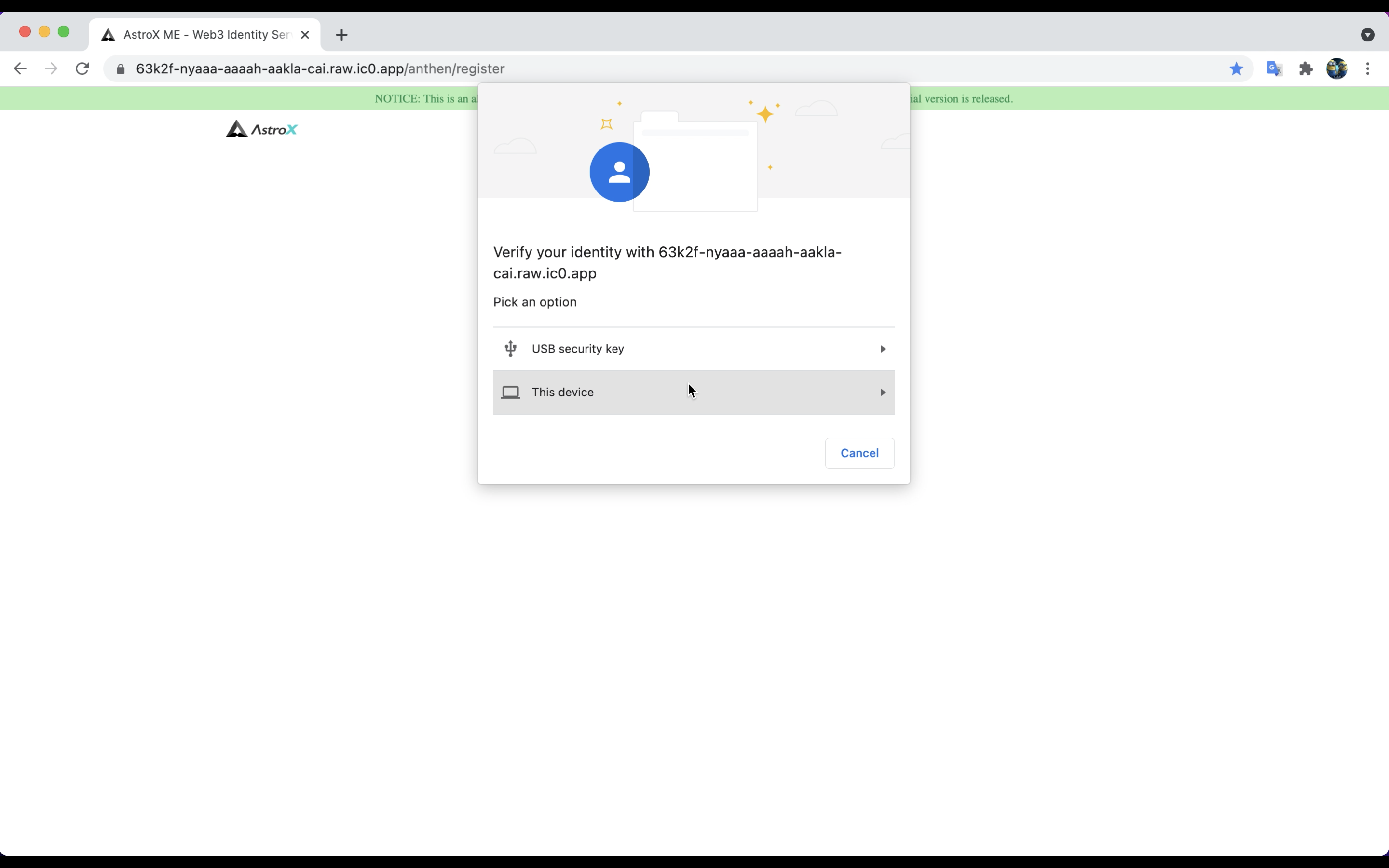
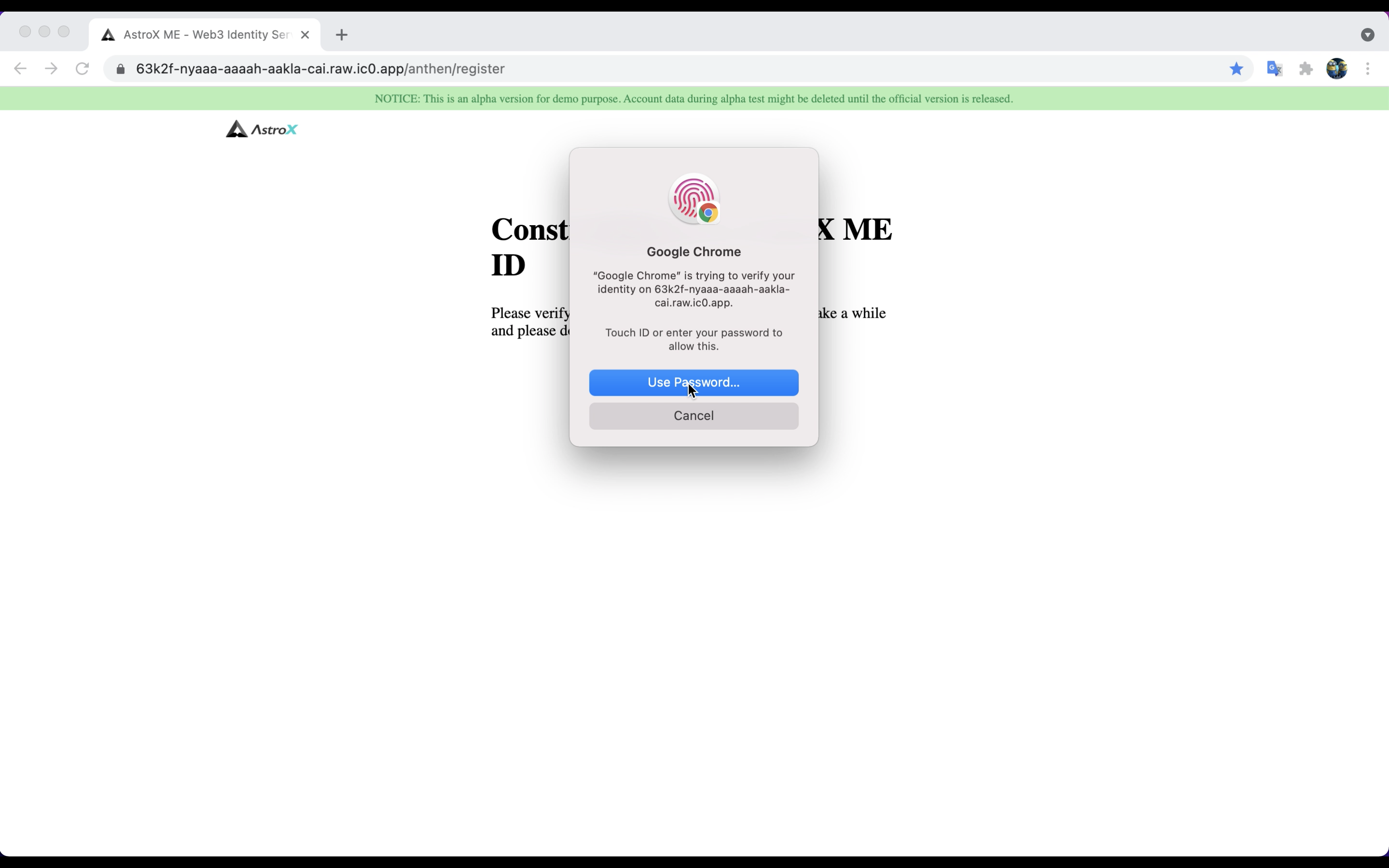
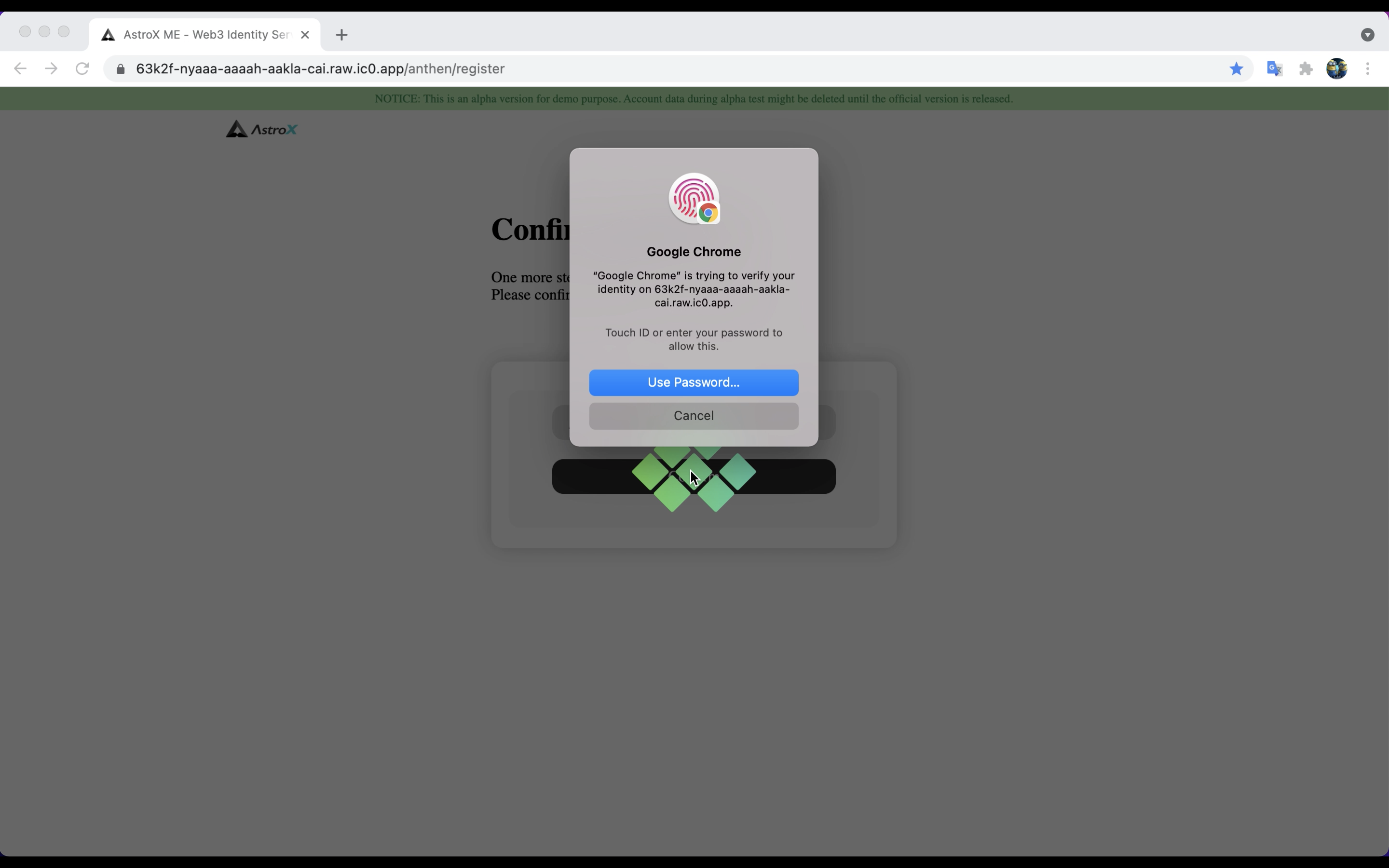
You can sign up your ME ID using your device supporting fingerprint or face verification methods.
We use the same mechanism as Internet Identity to store your private key in the device security chip. Therefore you don't need to mark down your private key first during signing up(Please notice that the private key here isn't the same as seed phrase.)
We will show you how to create your own ME ID and sign in a ME ID in this session.
Without further ado, let's dive in!
STEP 1: Open AstroX ME website. 🖥
Click here to open AstroX ME.
Notice: This is an alpha version for demo purpose. Account data during alpha test might be deleted when the official version is released.
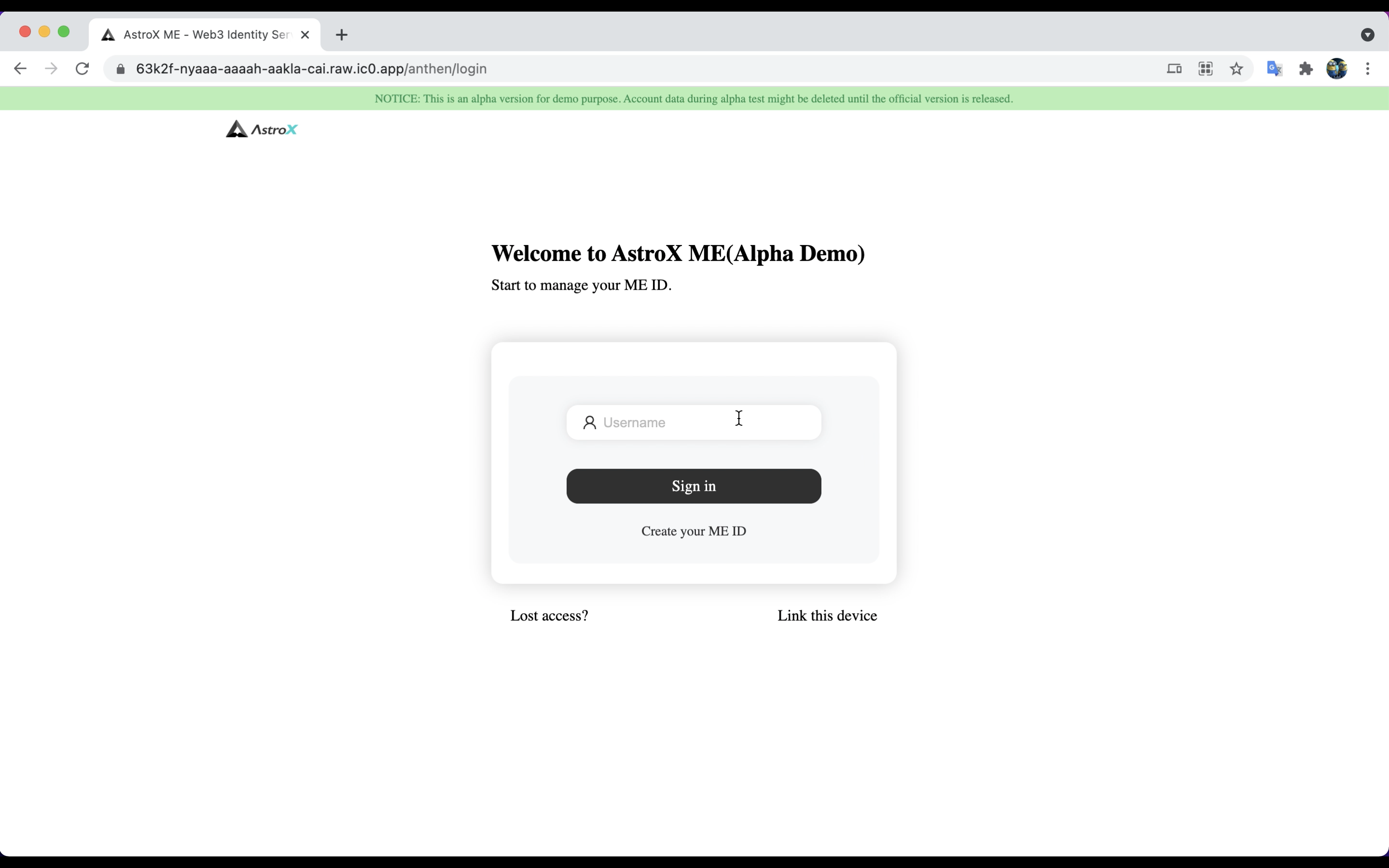
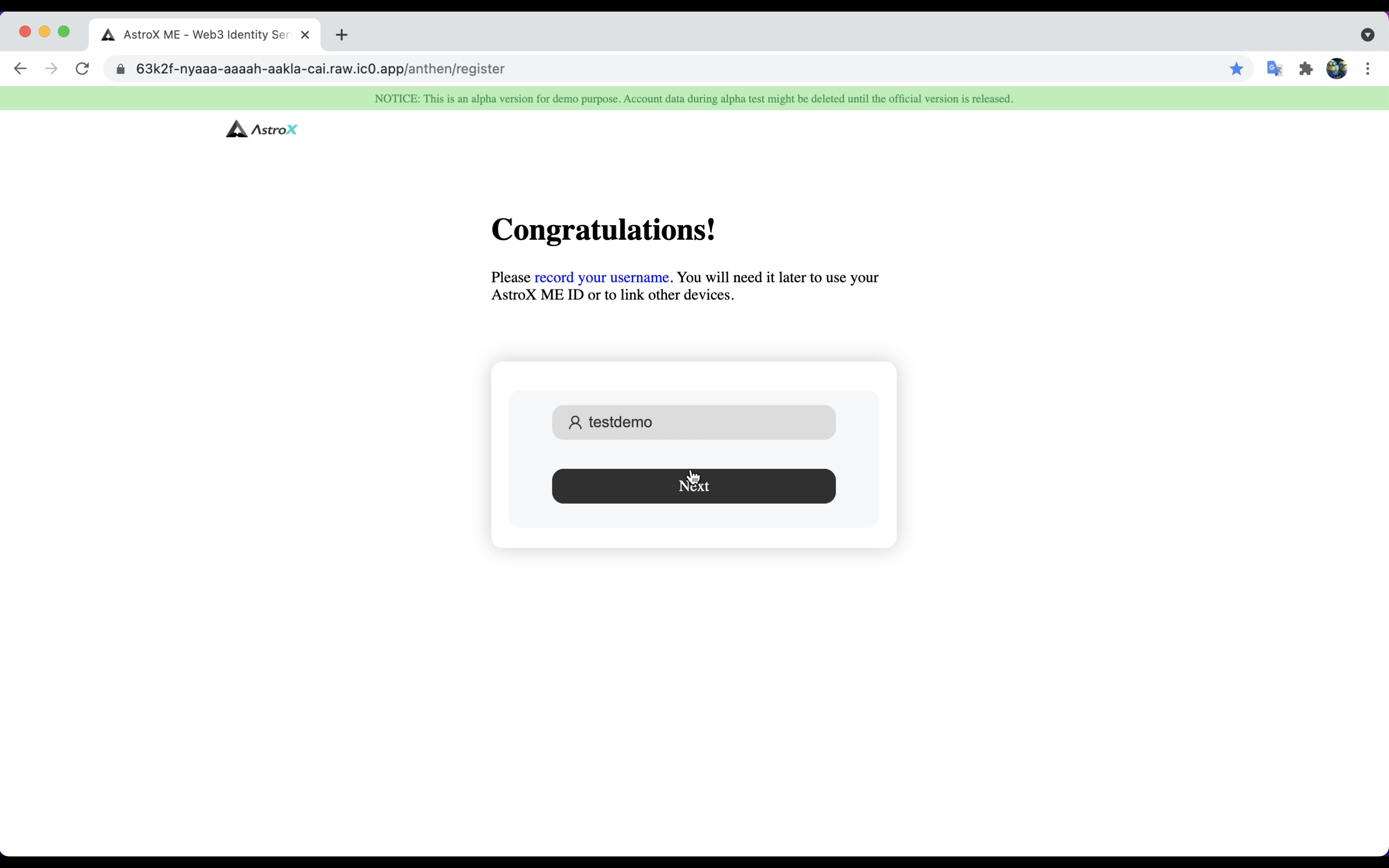
STEP 2: Enter your username. ⌨️
Username is the only identifier in AstroX ME, known as ME ID. You can enter any username you want. The username should not be the same as others, and it must be between 6 and 30 characters long with only letters(a-z), numbers(0-9), and periods(.) allowed.
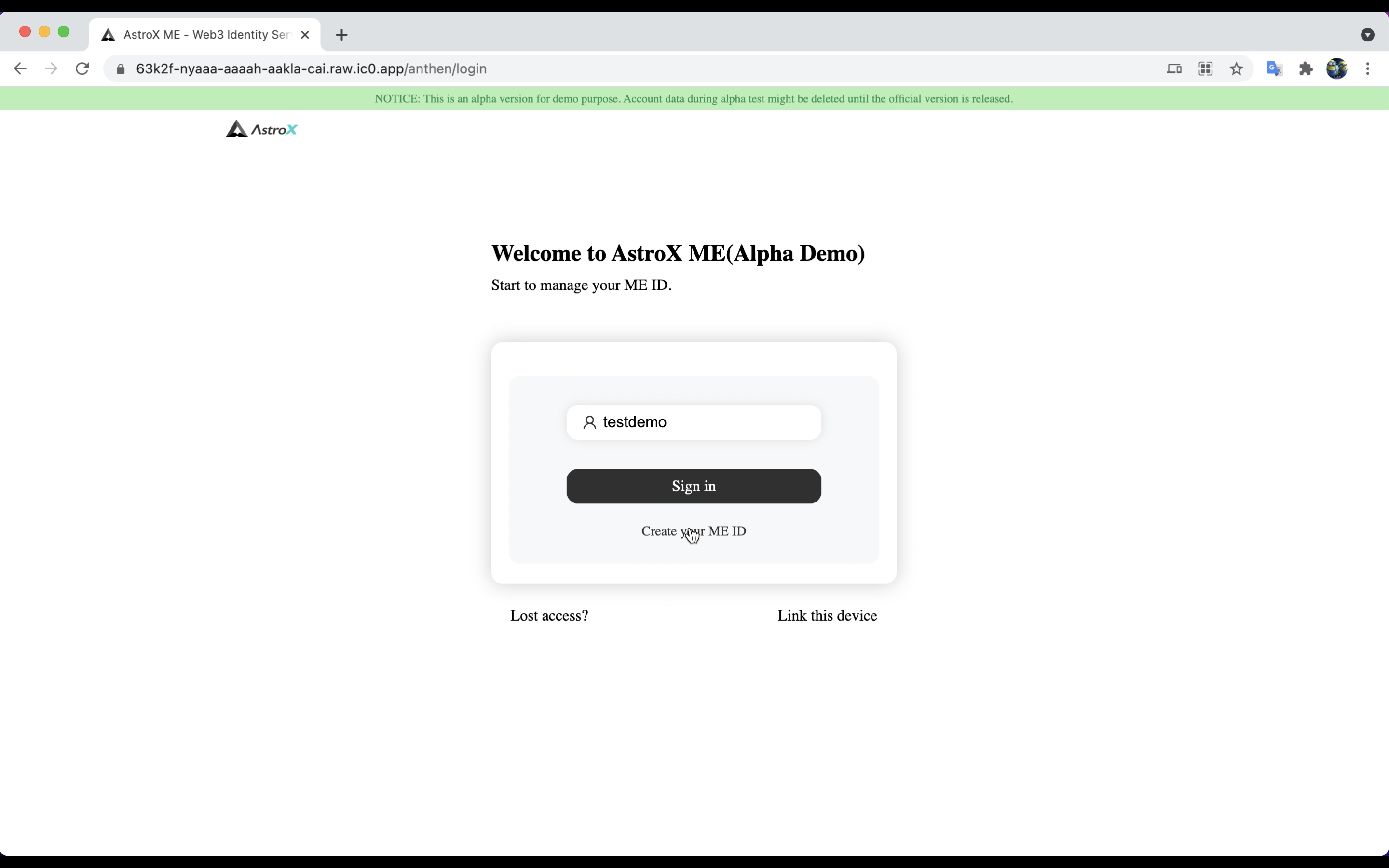
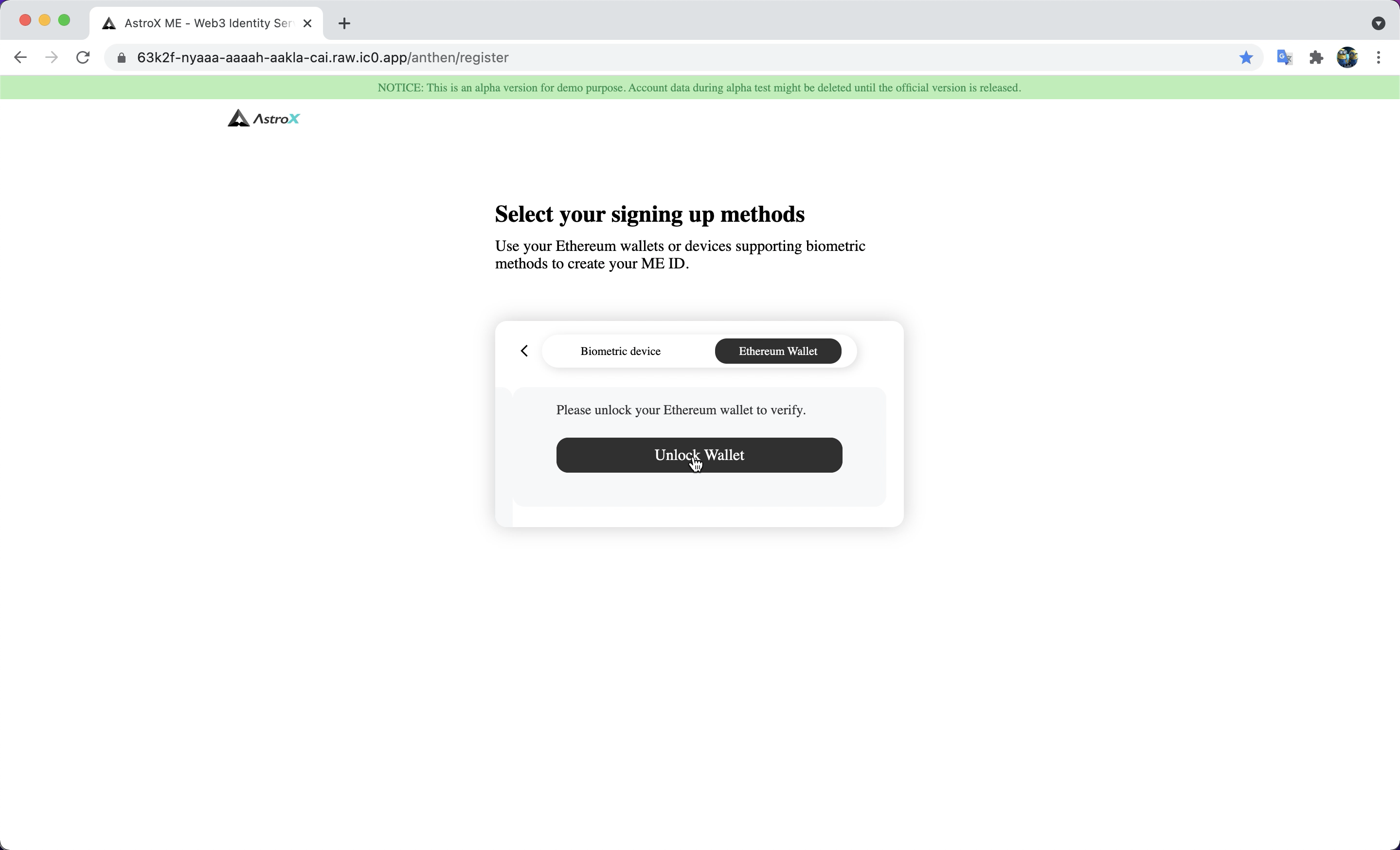
STEP 3: Select using your device or Ethereum wallet.
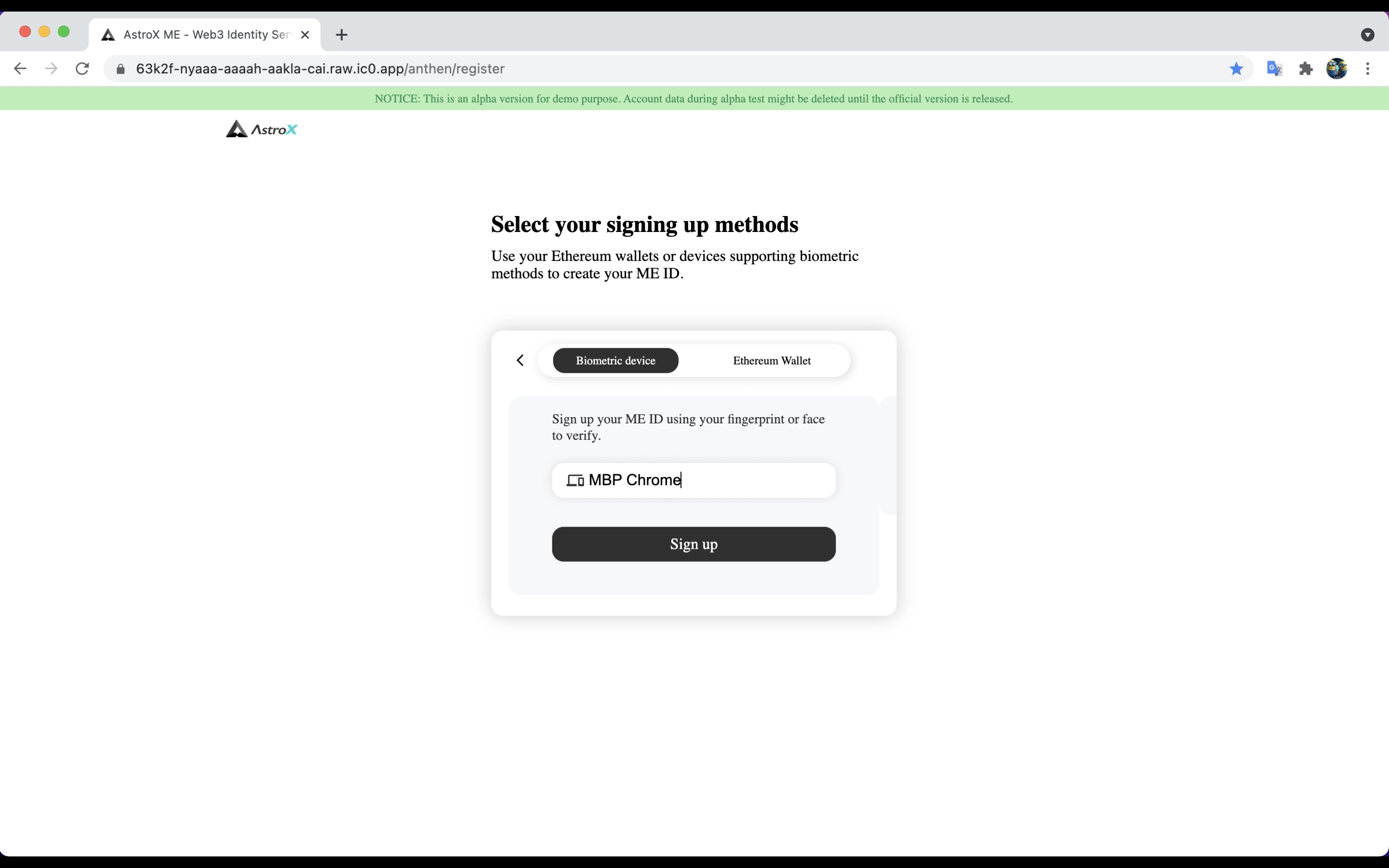
You can sign up for a ME ID with biometric devices and Ethereum wallets.
If you have a Mac, you can use Touch ID to sign up. If you have a tablet or smartphone, you can use Face ID.
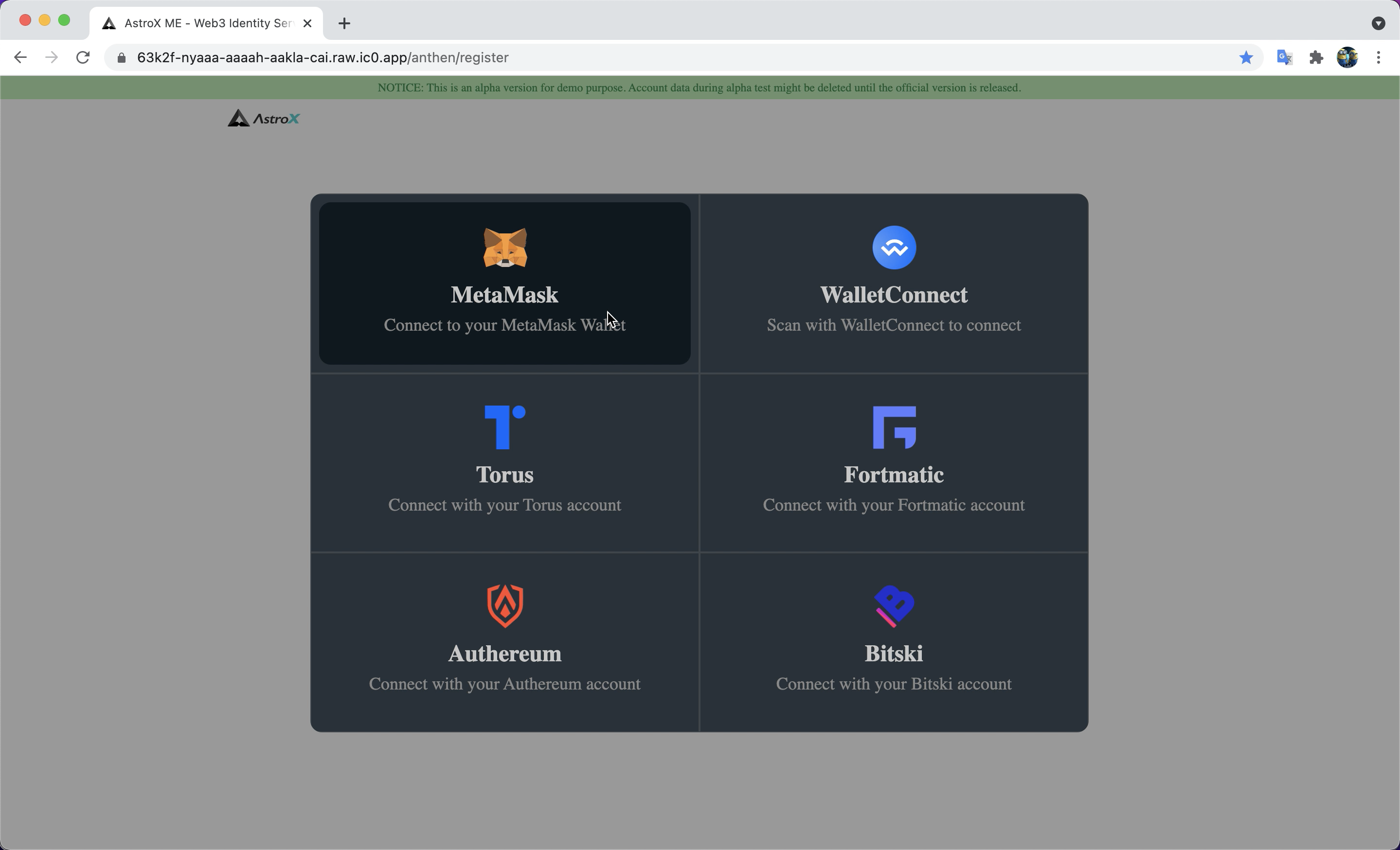
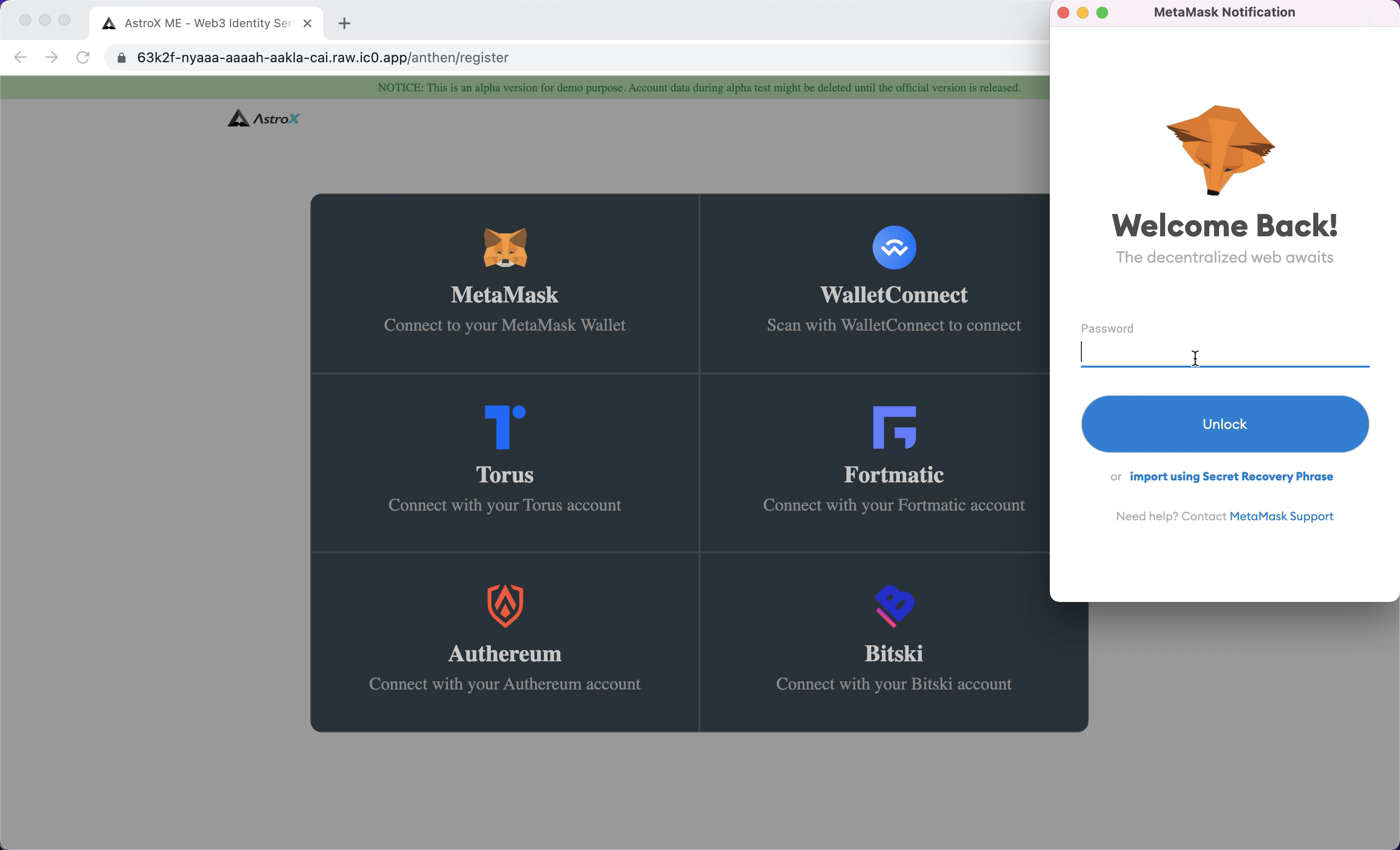
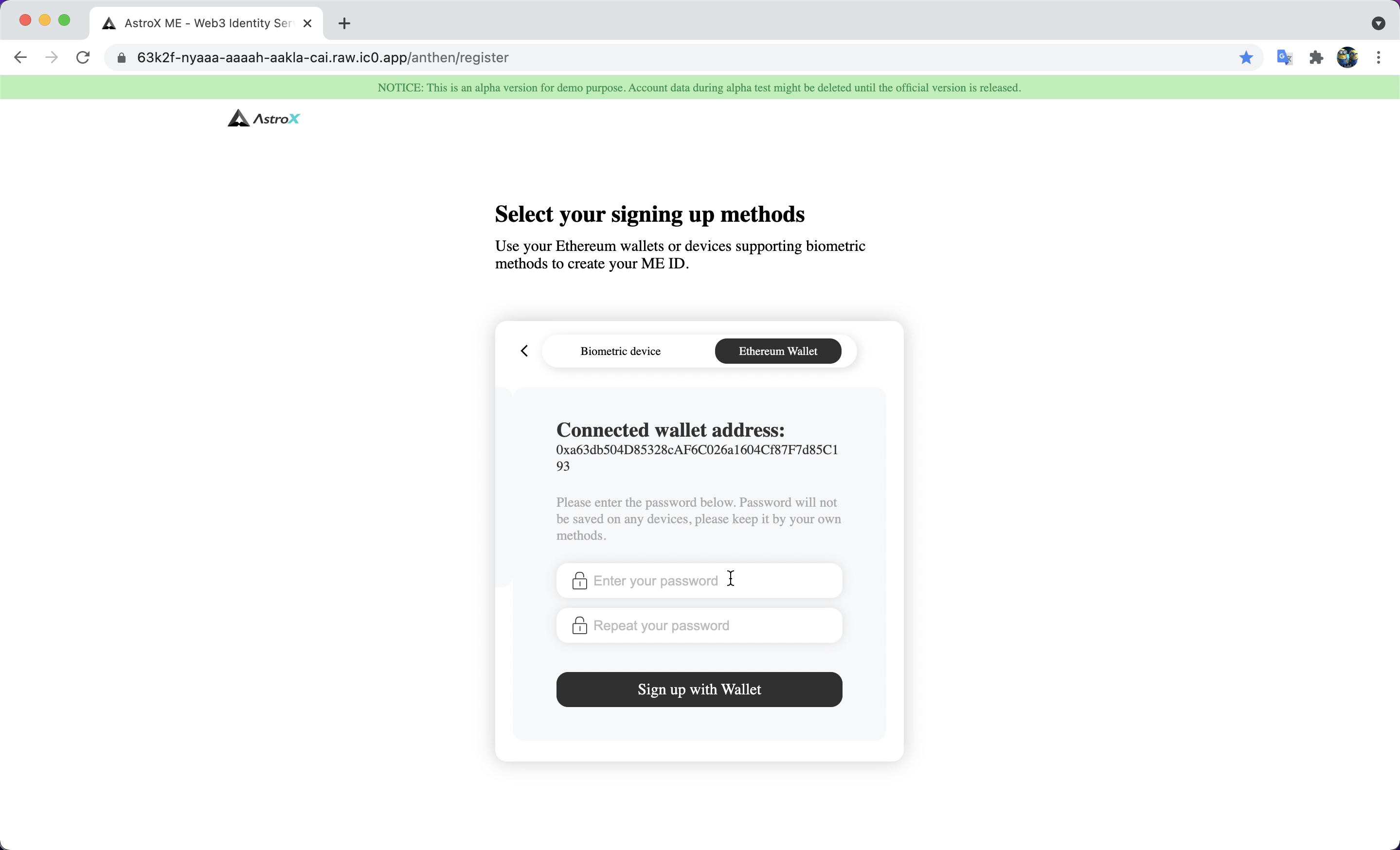
If you want to use ME ID on different devices without more settings, you can use an Ethereum wallet to sign up.
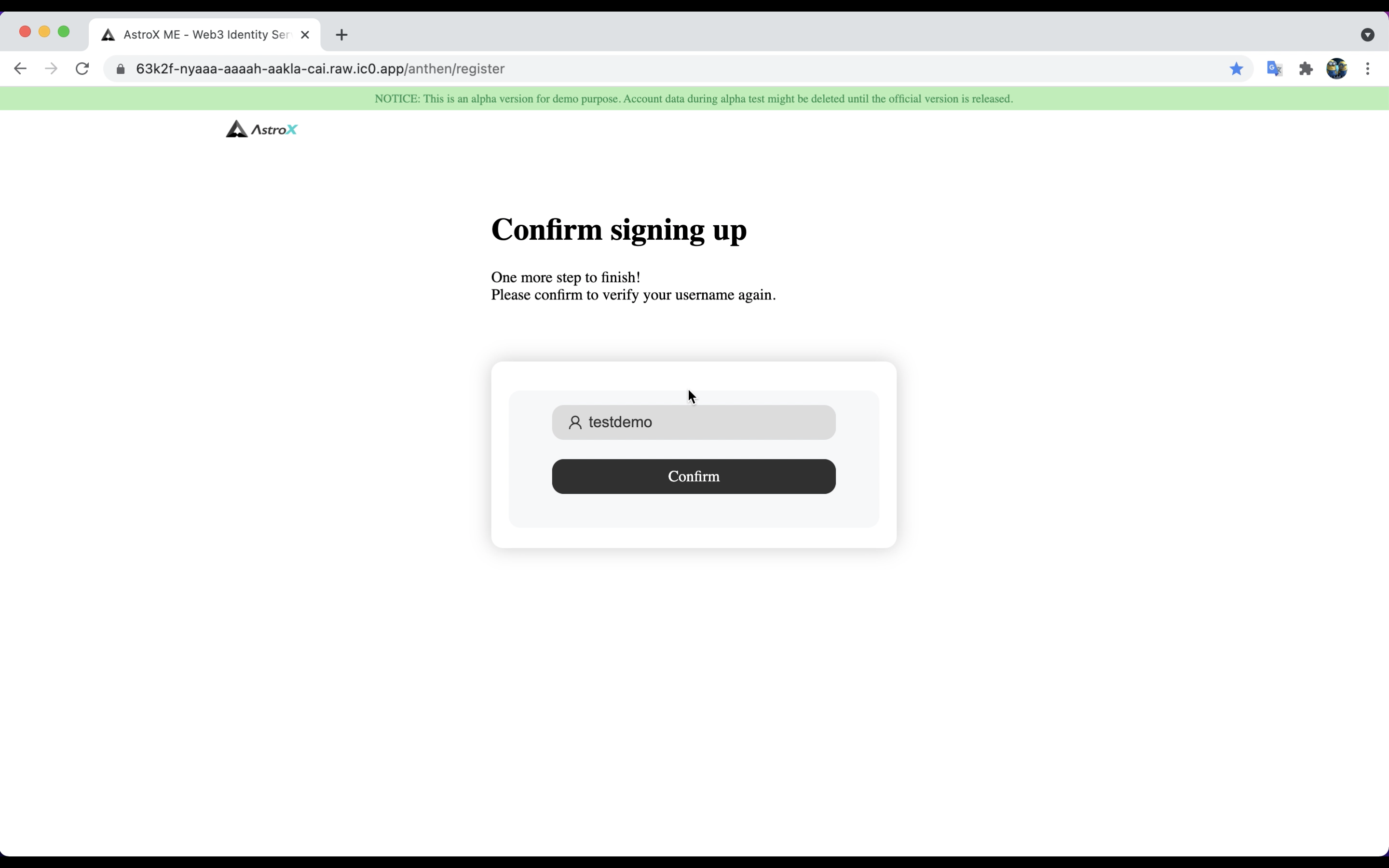
Biometric devices:
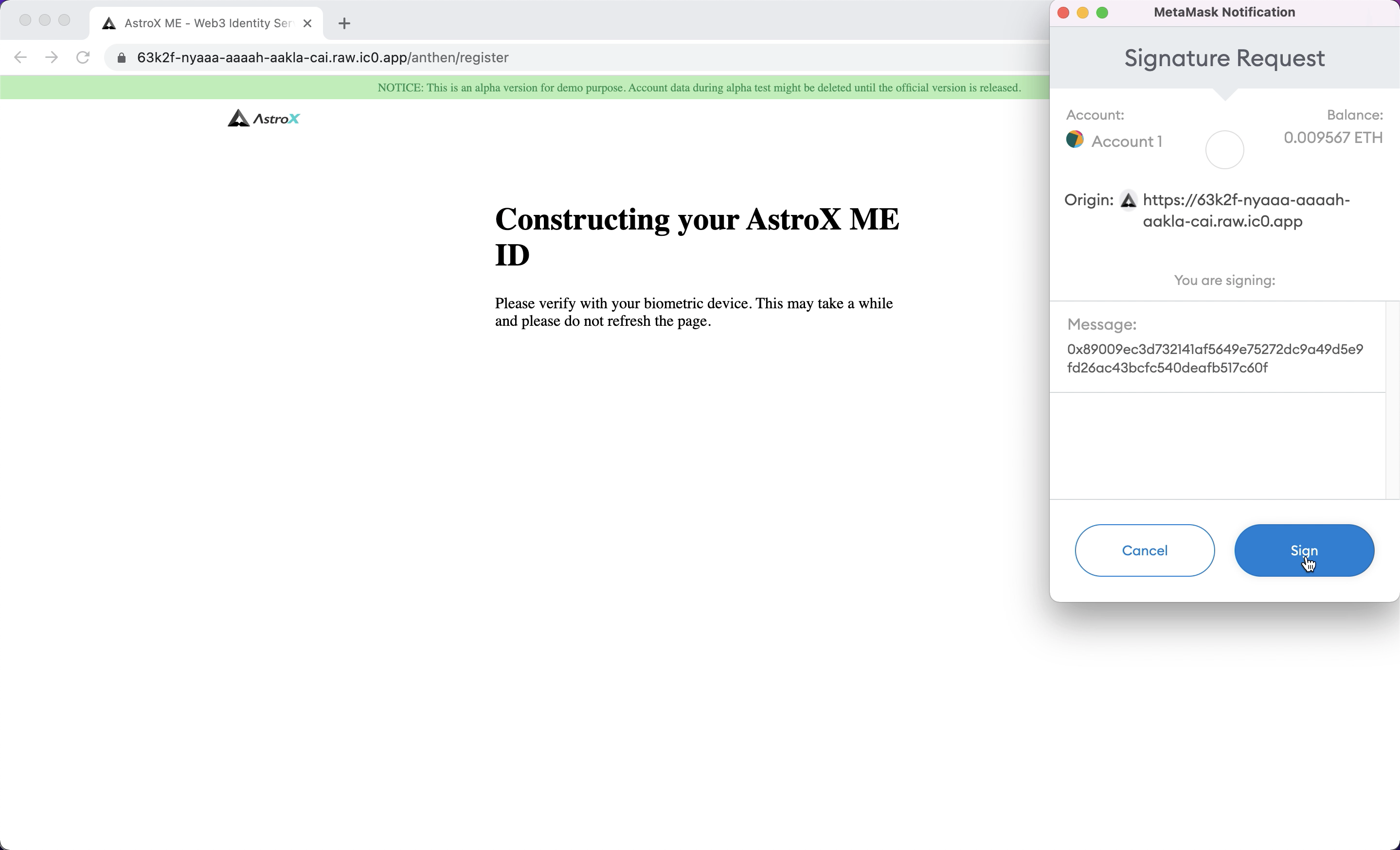
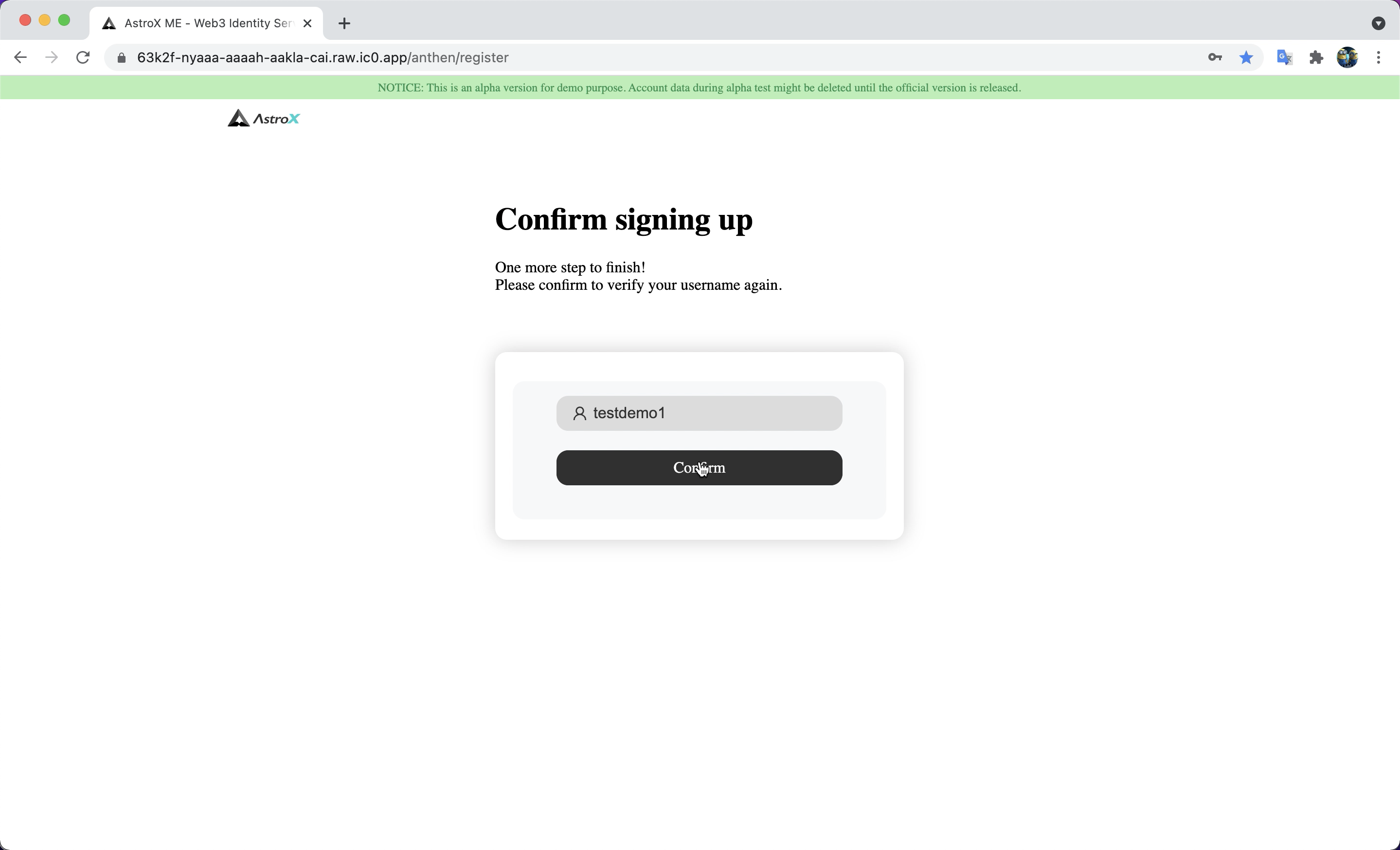
Ethereum wallets:
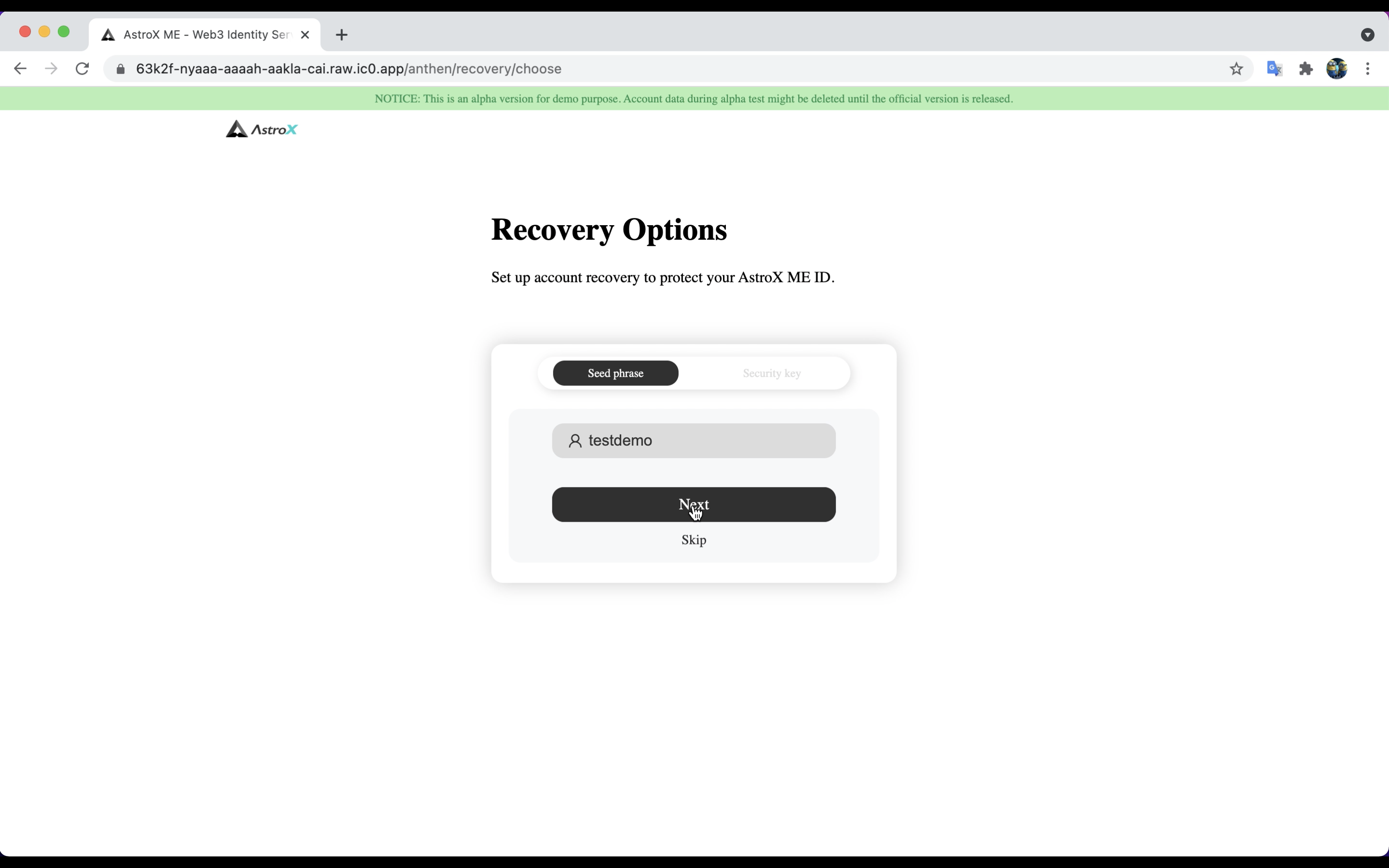
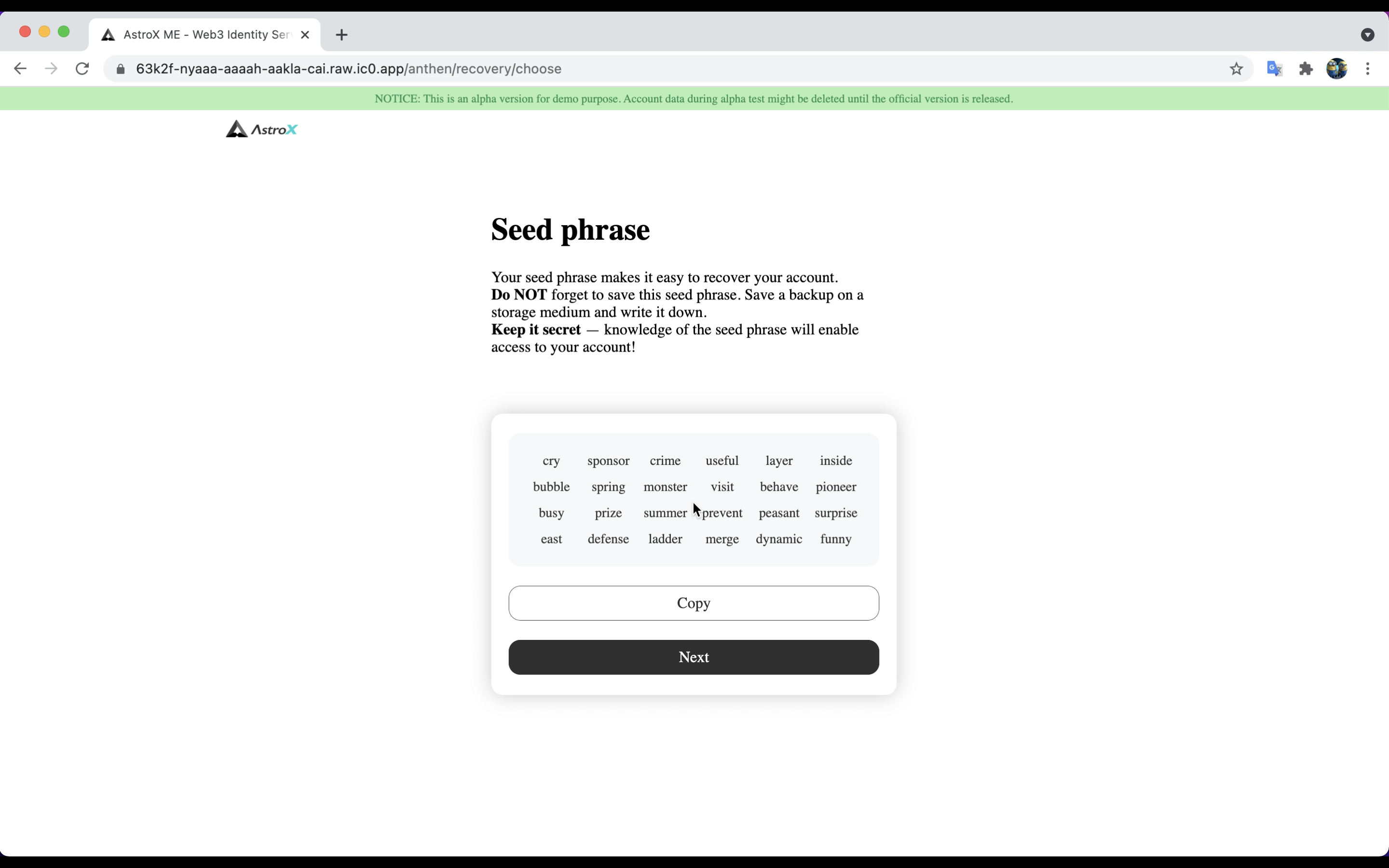
STEP 4: Backup seed phrase. 🔐
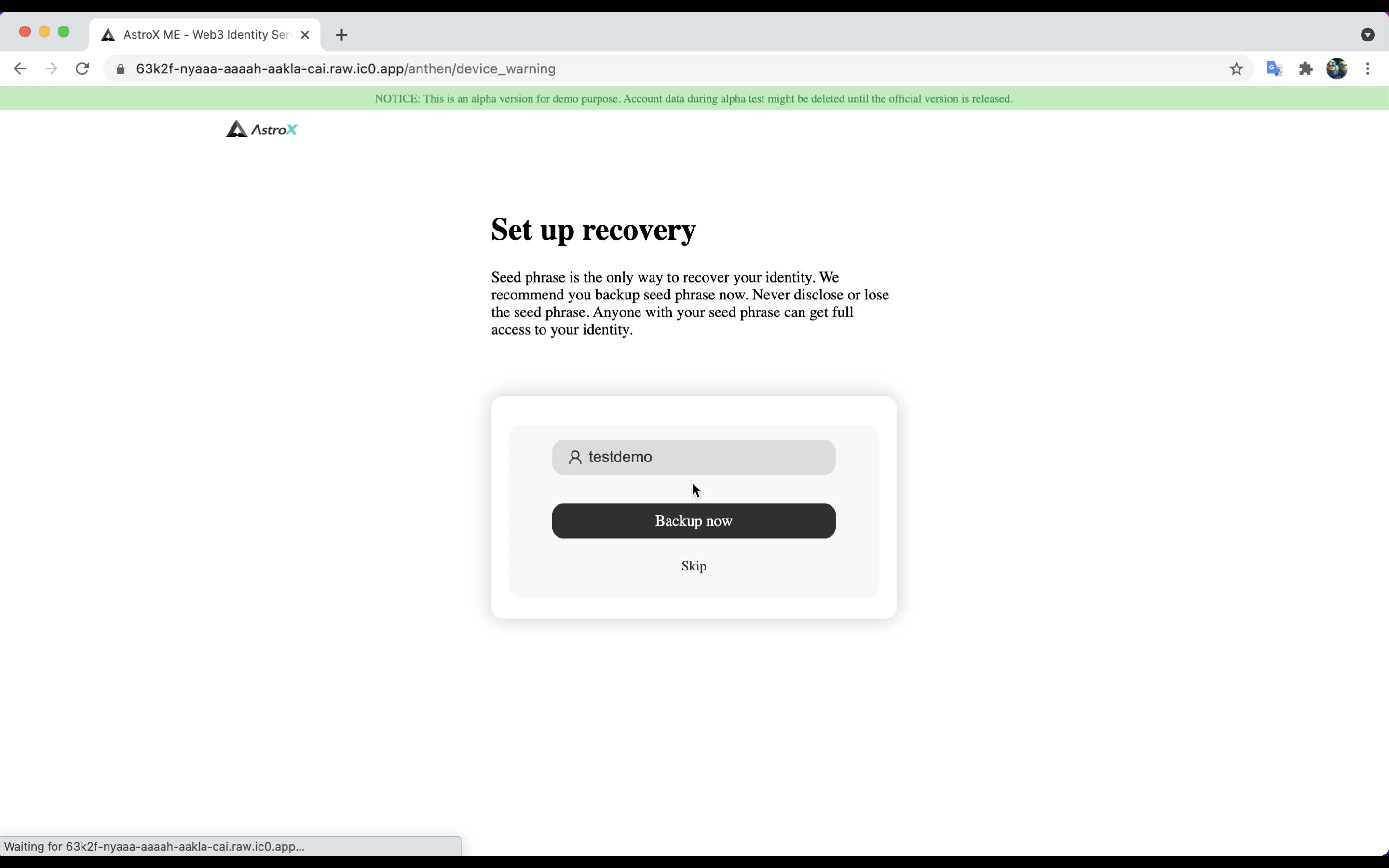
You can choose backup or not for now. If you skip it, you can set up seed phrase later in the dashboard. But remeber that seed phrase is the only way that you can recover your ME ID once you have done anything inevitable. Please keep it safe and no one except you can access to it.
STEP 5: Voilà! 🎉
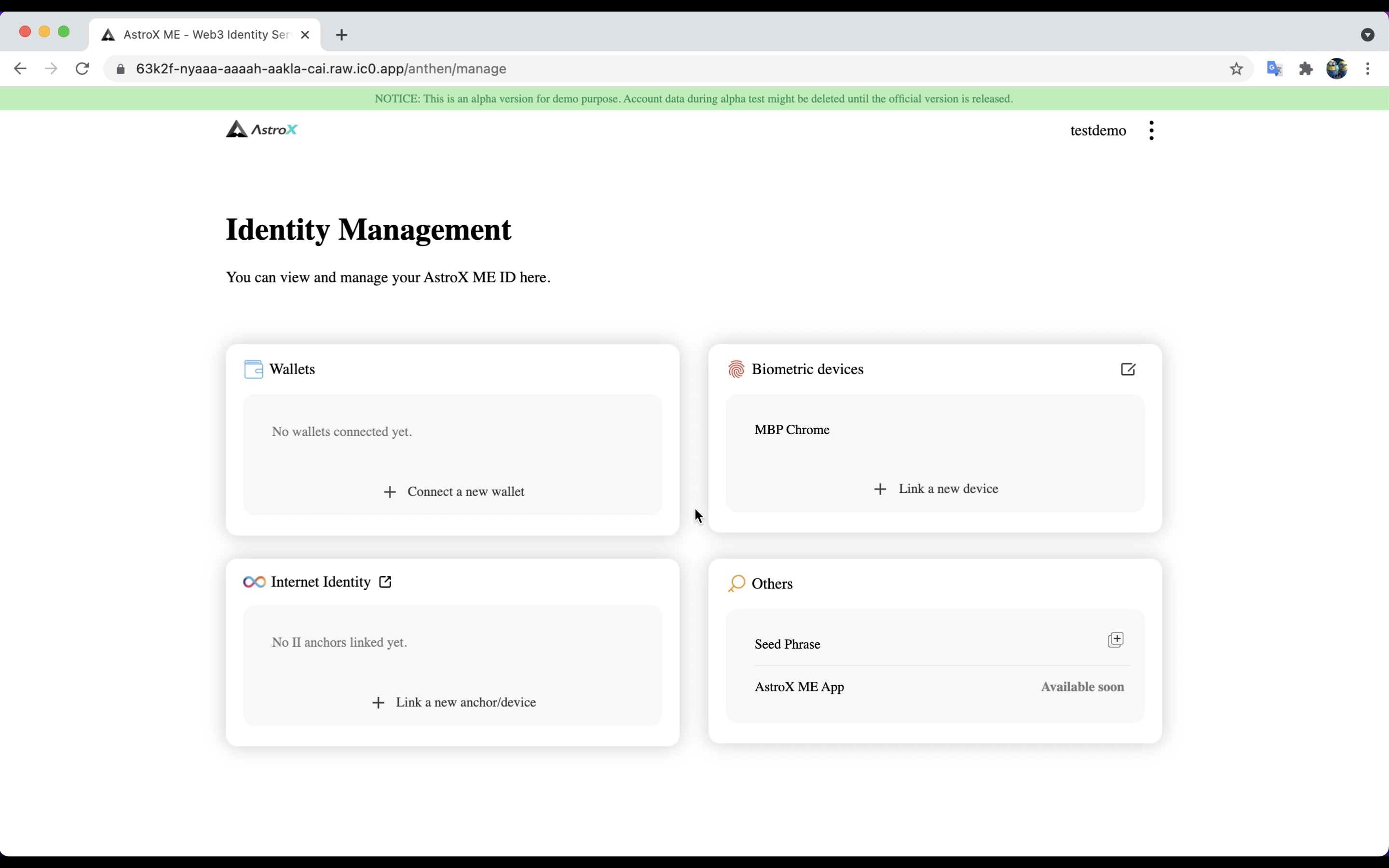
There you go! You have your own ME ID now.